Roles, groups & permissions
To ensure flexibility, security, and ease of management, our system uses a well-thought-out model of roles and access rights. Each user role is grouped with individually configured permissions that match the user's responsibilities and tasks.
User roles in the system
The system defines four key roles:
1. OEM (Original Equipment Manufacturer)
Purpose:
OEM users represent manufacturers of vehicles or equipment integrated with our platform.
Main responsibilities:
- Adding new units
- Uploading and updating services on units
- Monitoring technical parameters of units
2. Service Provider
Purpose:
These users are responsible for delivering a set of services that are made available to OEMs and Fleet Owners.
3. Fleet Owner
Purpose:
Fleet Owners manage a group of units as a single entity.
4. Admin (System Administrator)
Purpose:
The administrator role includes full permissions to configure and maintain the entire platform.
Main responsibilities:
- Managing all groups and permissions
- Editing global settings
- Assigning roles and access levels
- Viewing logs and auditing user activity
Flexible Permission Control via Groups
Each role is organized into a dedicated group, and permissions are managed at the group level. This allows:
- System scalability as the user base grows
- Delegation of responsibilities within roles
- Simplified user creation with predefined access levels
Adding a New User
To add a new user, go to your dashboard and navigate to:
- OEM: Users
- Service Provider: SP
- Fleet Owner: Fleet Owner
Then click the "+" icon in the top corner and fill out the form.
Depending on your role, you'll be able to create new users accordingly.
Example of creating an OEM user:
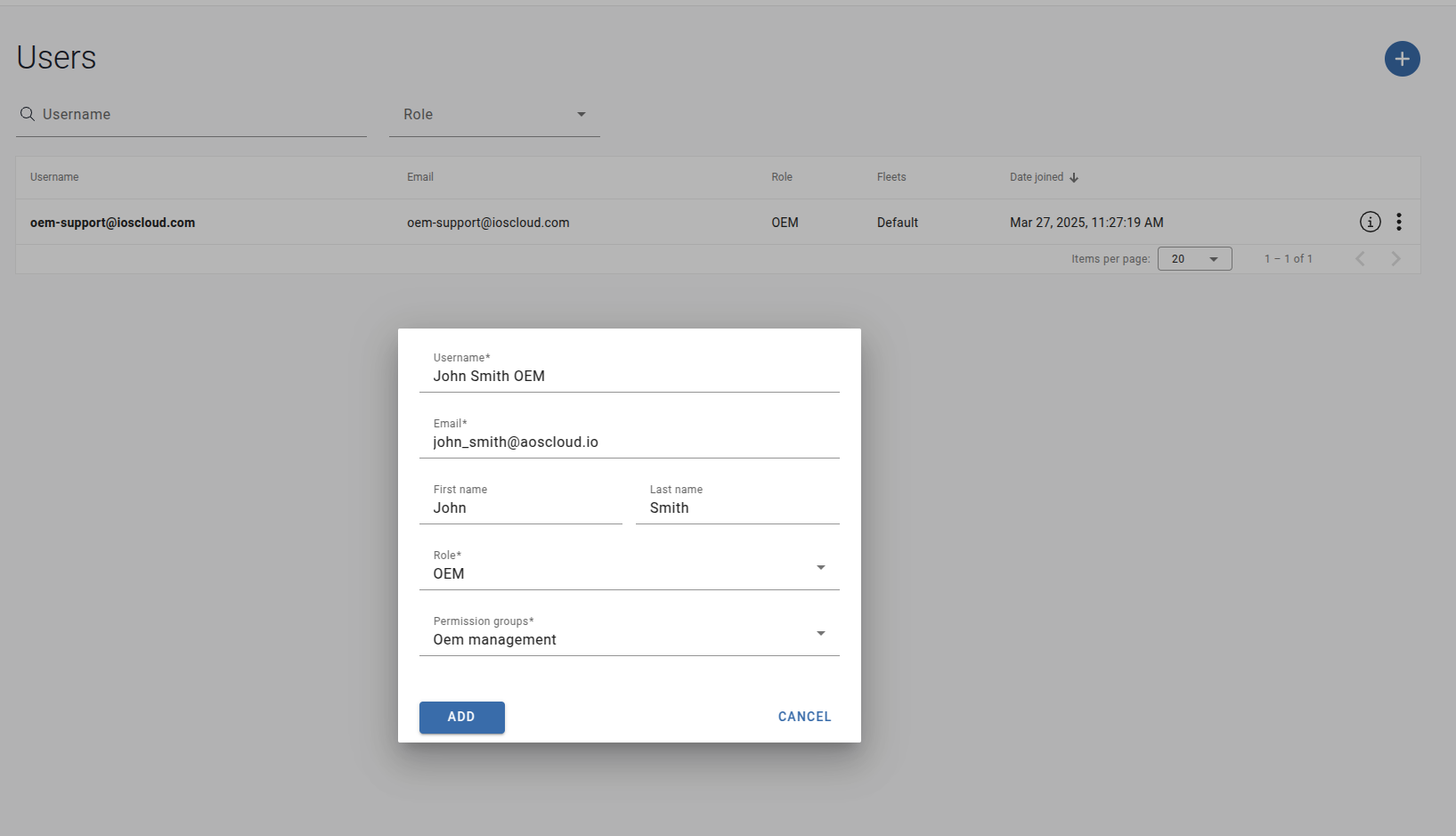
After creation, an invitation will be sent to the email address provided.
Permissions and Groups
Each role has a default group with a predefined set of permissions:
- OEM:
oem_management - Service Provider:
sp_management - Fleet Owner:
fleet_owner_management
You can view a user’s permissions in the user information window.
Example of a user's permissions:
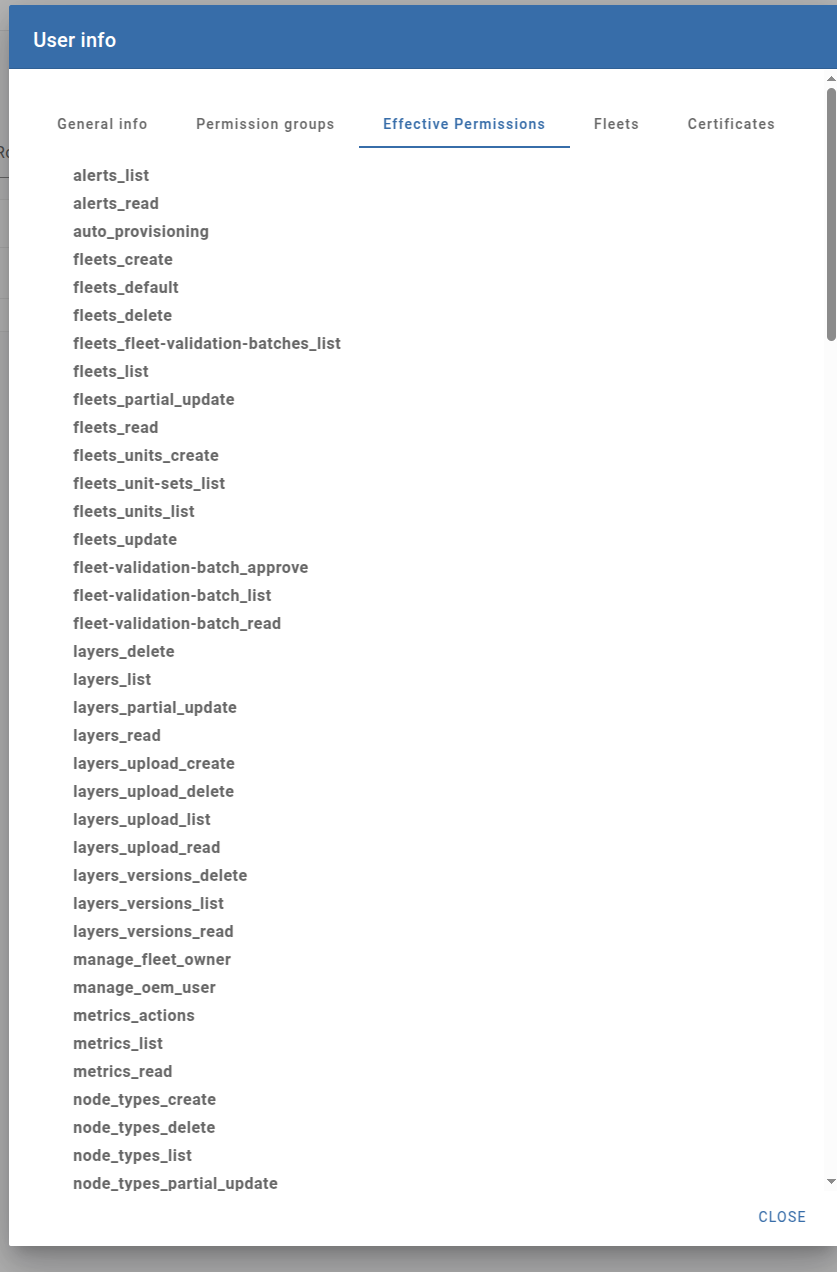
Note: You can request additional permissions from your administrator.
What Permissions You Need
To understand which permissions a user needs to access certain functionality, check the documentation here.
For example, to see who can create a subject:
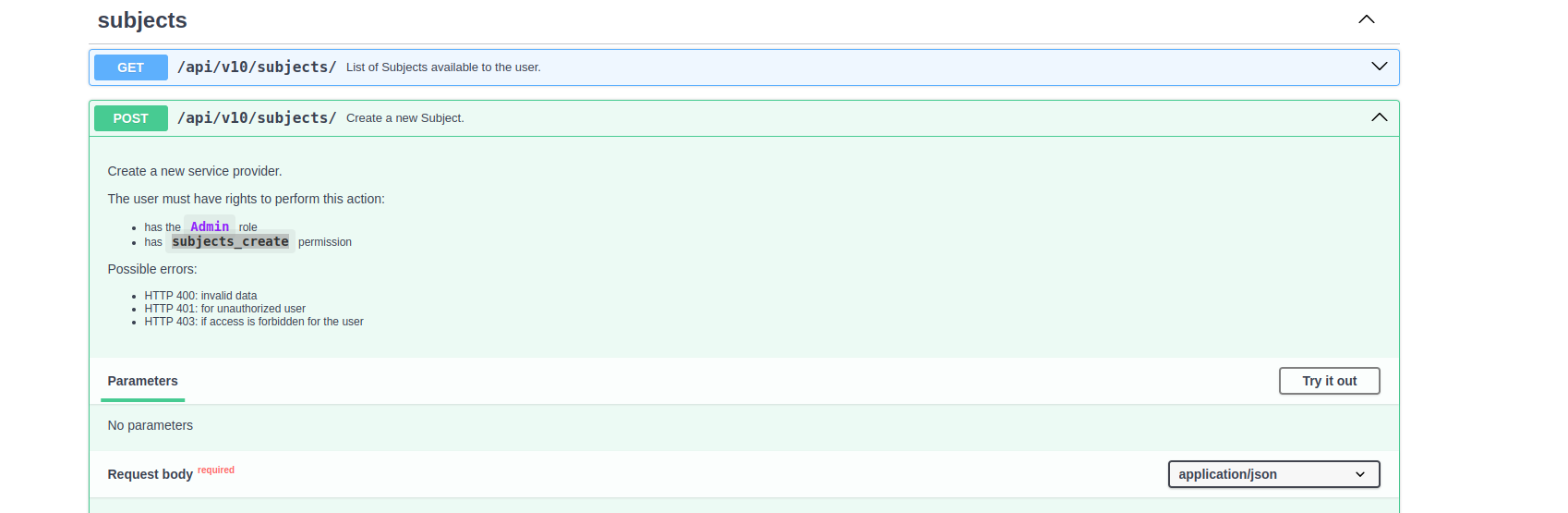
In the image, we see that to create a subject, the user must either be an admin or have the subjects_create permission.
Follow the link to obtain more information.